Scanned documents are easier to trust when they follow a pipeline: group pages, convert them in order, inspect the PDF, then decide whether rotation, compression, or another cleanup step is needed. The archive fails when unrelated scans are merged too early or when nobody checks the output.
For this refresh, I generated three synthetic scan images with page numbers and no personal data. I tested them in the NexKit Image to PDF tool. The production tool accepted the three JPEG pages, kept them in the displayed order, and created a 3-page PDF locally in the browser. I also checked the public OCR route during this review; /ocr-pdf returned 404, so OCR is not treated here as a currently available NexKit production step.
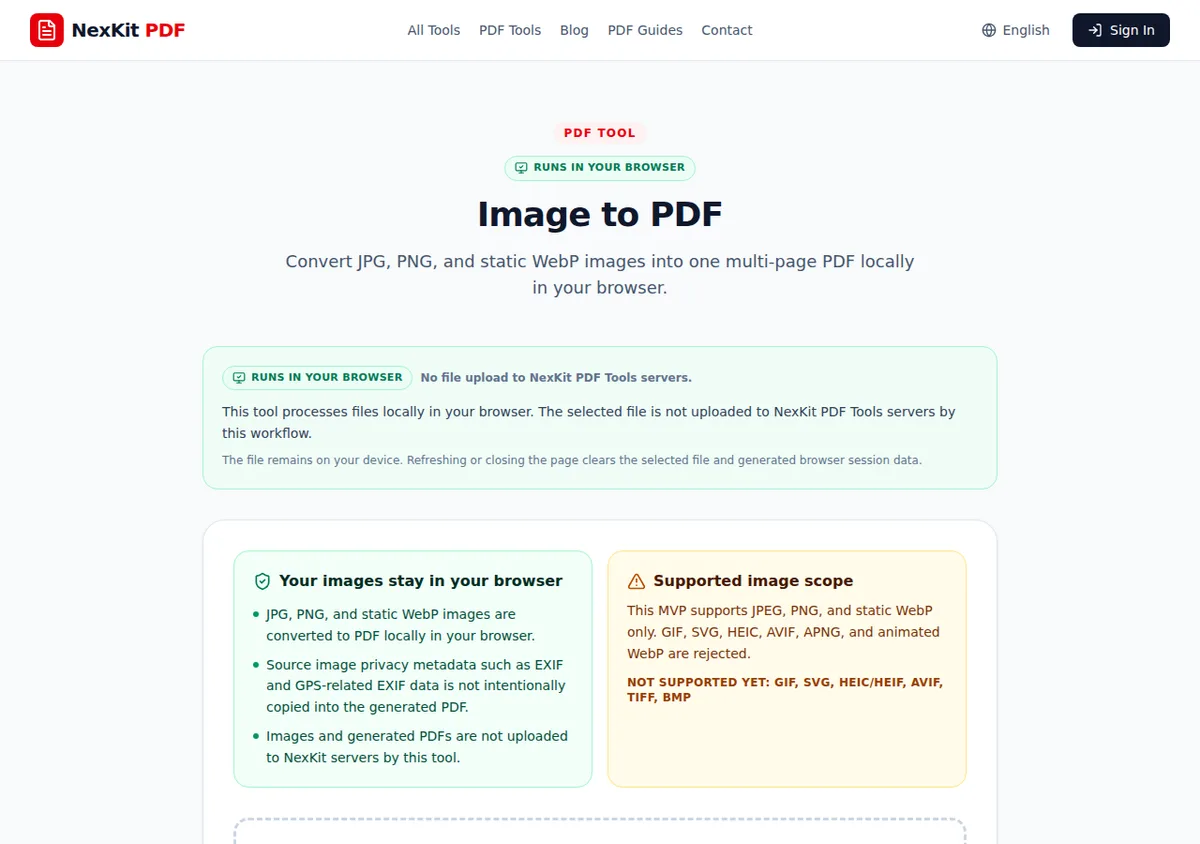 Three generated scan pages selected before conversion. Each page contains fictional test text and a page number.
Start with document groups
Do not scan every paper into one large file unless the pages truly belong together. Separate pages by purpose before conversion:
- One contract and its attachments.
- One receipt packet for a trip or project.
- One application form with supporting pages.
- One invoice group for a vendor and month.
- One letter or notice and any response pages.
This step matters more than the tool. If unrelated pages are converted into one PDF, the result is already hard to archive correctly.
Prepare each scan page
Before conversion, make a quick page-level pass:
- Delete blank or duplicate scans.
- Rotate images that are sideways.
- Re-scan pages where small text is unreadable.
- Put pages in sequence.
- Rename source images if the order is not obvious.
The test fixture used files named like a simple page sequence. NexKit displayed the pages in order before conversion, which gives you a clear checkpoint before creating the PDF.
Convert the scan packet
After selecting the generated scan pages, the tested production workflow created a 3-page PDF. The page also disclosed browser-local processing for Image to PDF: selected files are processed locally in the browser and are not uploaded to NexKit PDF Tools servers by this workflow. In the browser capture for this test, no POST, PUT, or PATCH requests were made during file selection and PDF creation.
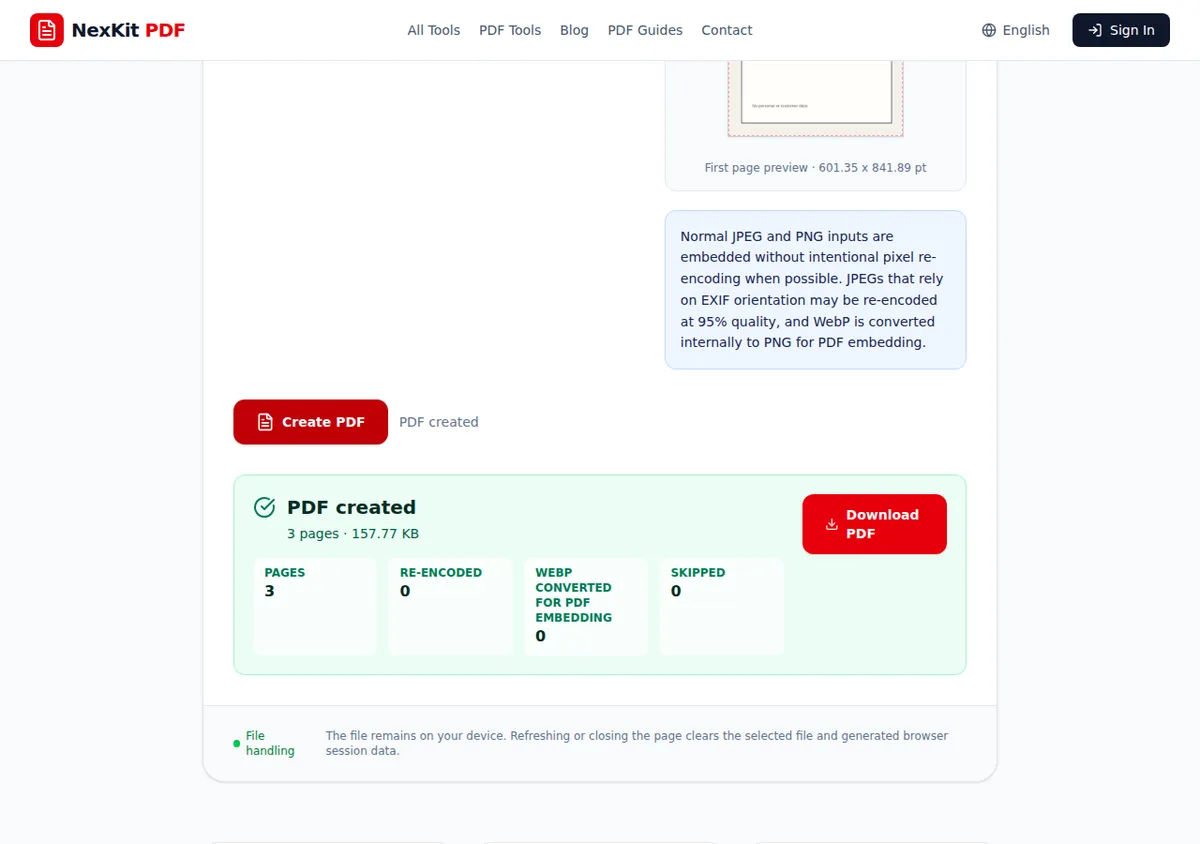 The generated scan fixture produced a 3-page PDF. This verifies page count and output behavior for the tested workflow.
Use the downloaded PDF as a review copy first. Do not immediately archive it.
OCR decision point
Many scanned PDFs are image-only. That means you can read the page visually, but selectable/searchable text may not exist inside the PDF. OCR is the step that can add a text layer, but it must be a real available tool before you rely on it.
During this refresh, the NexKit OCR route I checked returned 404 in production. Because of that, this guide does not claim that NexKit currently completes OCR for this workflow. If you need searchable text today, verify the OCR tool you intend to use before adding it to your process.
Naming and folder structure
A useful scanned PDF name should tell you what the document is without opening it:
lease-agreement-2026-06-15.pdfvendor-invoice-acme-2026-06.pdfapplication-supporting-documents-page-set.pdf
Avoid scan001.pdf and new-scan-final-final.pdf. Those names force future readers to open the file just to understand it.
Store the PDF in a folder that reflects the workflow, not the scanner date. A folder named tax-2026, client-onboarding-june, or project-receipts is more useful than a generic downloads folder.
Cleanup after conversion
After opening the PDF, check:
- Are all expected pages present?
- Are the pages in the correct order?
- Is any page sideways?
- Are stamps, signatures, dates, and small text readable?
- Are unrelated pages included?
- Does the file size fit the upload or sharing destination?
If the PDF has page orientation issues, use Rotate PDF. If the file is too large, use Compress PDF, then inspect the compressed copy before sending or archiving. Browser-side compression may report that a PDF is already optimized; that is a valid result, not a failure.
For image ordering and mixed image formats, the image-to-PDF workflow guide goes deeper into conversion preparation.
Final archive checklist
Only archive the PDF after this pass:
- The source images still exist until the PDF is verified.
- The PDF opens on a normal viewer.
- The file name describes the document type and date.
- The page order matches the original document.
- Searchability has been verified if your archive requires OCR.
- Any compressed copy has been checked for readability.
Organized scanned PDFs come from a controlled pipeline, not just a scan button. Group the pages first, convert only the right set, verify the output, and document any OCR or compression limitations before the file becomes a long-term record.
Related tools
- Image to PDF for turning generated or scanned JPEG, PNG, and static WebP images into a PDF.
- Rotate PDF for fixing sideways scanned pages.
- Compress PDF for reducing scan-heavy PDF size when the output still remains readable.